Now, we are going to create our first Android app in the Android development tutorial series. I assume that you've already setup a complete Android development environment and has a basic knowledge on Android application components and activity lifecycle.
Its a longstanding tradition that when learning a new programming language or a framework, the first program written is to display a "Hello World" on screen. Its pretty easy with Android. We can create a Hello World program in Android with practically no coding at all. Here we will make our first Android app with some interesting functionality, rather than just a simple "Hello World" app.
Create a new project
Open Eclipse
Go to File'New'Project
Expand Android Folder, select
Android Project and click
Next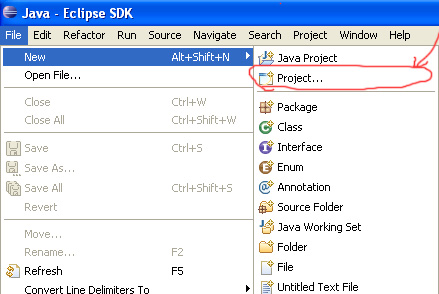
Create the project with following properties:
- Project Name: First App
- Build Target: Select a suitable platform. Here I've selected 2.3.3
- Application Name: First App
- Package Name: com.firstapp
- Create Activity: MainActivity
- Min SDK version: 5
These properties can be explained as follows:
Project Name:
Name of your Project. Make it a descriptive one so that you can identify it from others. A directory of that name will be created in the Eclipse workspace which contains the project files.
Build Target:
Here we are specifying under which API level, we are going to develop our program. If we select 2.3, it means that we are developing our app with 2.3 API. We are able to use only the features of 2.3 framework in our app.
Application Name:
The name of our application. This name will be displayed for our application, when installed on a device.
Package Name:
Its the name of the Java package in which our code is going to be organized. It is a method to organize Java classes into modules. "com.maindomain.subdomain" is the common package naming convention.
Create Activity:
This is the name of the first Activity in our application. When our application runs, this activity will be called by the system by default.
Min SDK version:
By Minimum Android version, we are specifying the minimum version of Android that is capable of running our application.
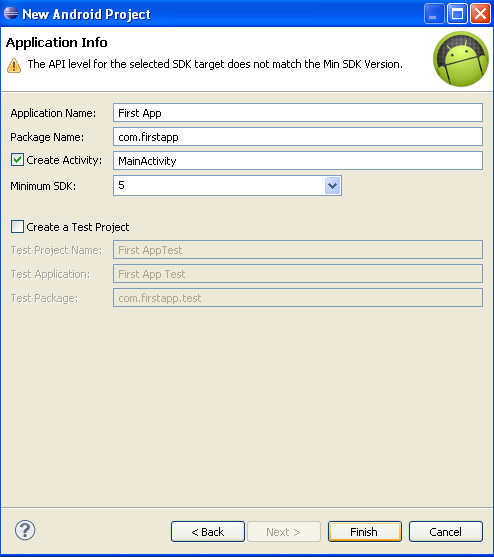
Now click Finish. Our new project is created.
Creating a Run configuration
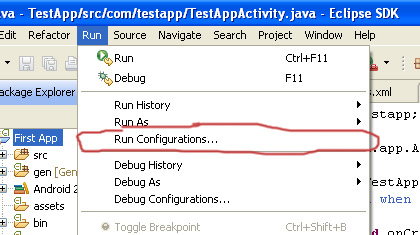
Go to Run?Run Configurations
Select Android Application in the left pane
and click on the
New Launch Configuration button as shown in
the figure.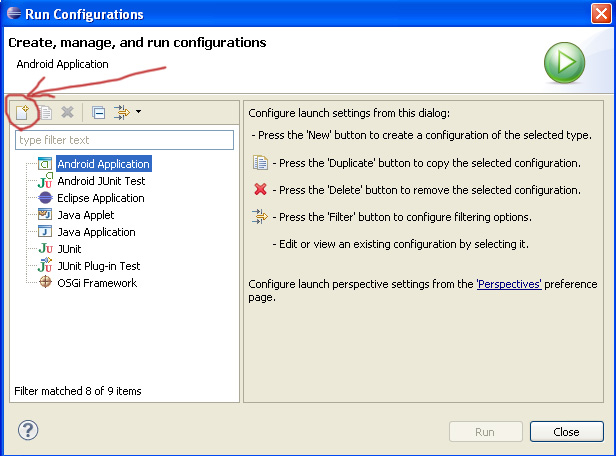
Add a suitable name for the new Run Configuration select your current project by clicking on browse.
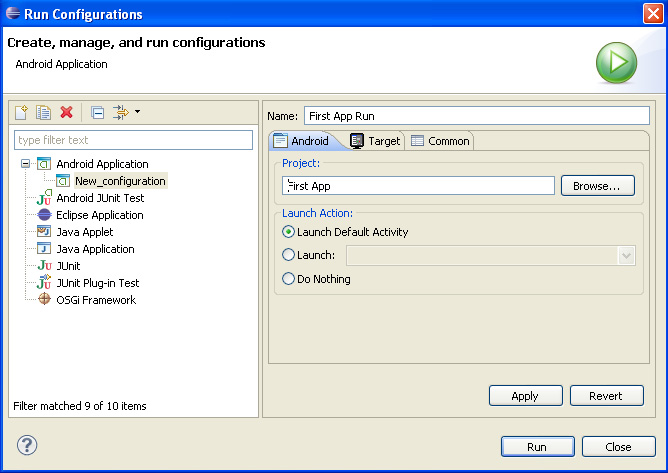
Select Target tab
Click Automatic and select the target virtual device you've created before.
(If you want to debug your application in a hardware device
then select Manual instead of
Automatic)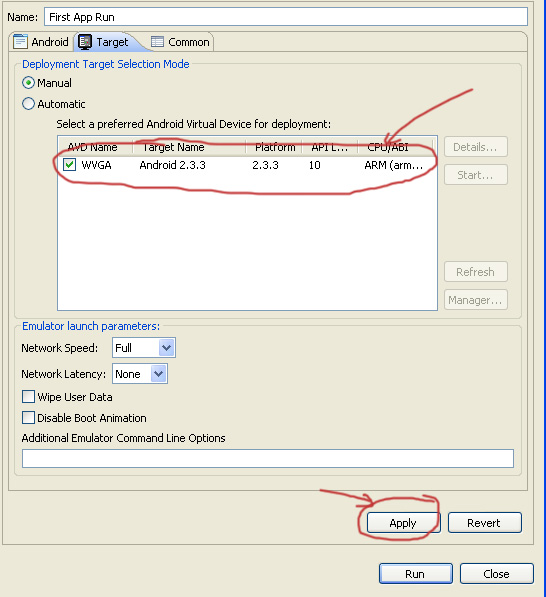
Click Apply and Close the dialogue.
Now you've successfully created a Run Configuration of your project.
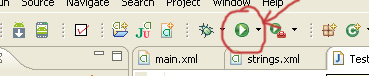
Now Run your app by selecting
Run?Run or by clicking
the Run button in the toolbar.
If you've opted for manual target selection in the Run
Configuration setup, Android will present you a chooser from
where you can choose your run target device. Choose your
virtual device or the physical device and click OK.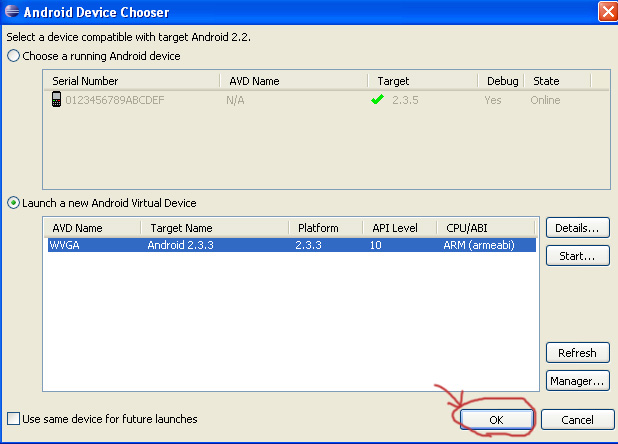
Now the emulator will start, it will take some time to load.
After loading you will see the lock screen. Drag the slider to
unlock the screen. Now you can see your Activity in the
screen.
Without writing even a line of code, we made our Hello World application. It is really amazing, isn't it. Lets analyze those components in our project that made this happen.
Go to Package Explorer window in the Eclipse and open AndroidManifest.xml file in the root folder.
Open the AndroidMAnifest.xml tab in the bottom of the window. You will see the following code:
<?xml version="1.0" encoding="utf-8"?>
<manifest xmlns:android="http://schemas.android.com/apk/res/android"
    package="com.firstapp"
    android:versionCode="1"
    android:versionName="1.0" >

    <uses-sdk android:minSdkVersion="5" />

    <application
        android:icon="@drawable/ic_launcher"
        android:label="@string/app_name" >
        <activity
            android:name=".MainActivity"
            android:label="@string/app_name" >
            <intent-filter>
                <action android:name="android.intent.action.MAIN" />

                <category android:name="android.intent.category.LAUNCHER" />
            </intent-filter>
        </activity>
    </application>

</manifest>
(We will get into the details of each of these in later posts. For now just know the basic concept)
The AndroidManifest file is a road map for the Android OS, when your app starts executing. It tells the OS, details of your app. It contains all informations about your app such version name, application label, icon file, user permissions required, details about activities and services etc.
The first line is the XML version and encoding declaration. Next it specify the package name, version code and version name of the app. Then name of the application and the icon file is pointed. Next is the name and label of the Activity. Intent filter specifies that this Activity should start when the applcation is launched.
Now open MainActivity.java in the SRC folder under the package name. It will look like the code below:
package com.firstapp;

import android.app.Activity;
import android.os.Bundle;

public class MainActivity extends Activity {
    /** Called when the activity is first created. */
    @Override
    public void onCreate(Bundle savedInstanceState) {
        super.onCreate(savedInstanceState);
        setContentView(R.layout.main);
    }
}
First lines specifies our java package and next two lines is used to import required packages into our app. Code of our main activity starts by extending the Activity class. We are overriding the onCreate() method and calling the method by the superclass. Then we are calling setContentView() method and passing R.layout.main into it. It is the xml file where our UI is defined. This means that the file named main in layout directory in the res folder. This is how we access a resource programmatically in java.
Let us see how the UI of our application is defined. Open main.xml under res/layout folder.
By default you will see the graphical layout. Switch it to text layout by clicking on the main.xml tab at the bottom.
Heres the code for main.xml:
<?xml version="1.0" encoding="utf-8"?>
<LinearLayout xmlns:android="http://schemas.android.com/apk/res/android"
    android:layout_width="fill_parent"
    android:layout_height="fill_parent"
    android:orientation="vertical" >

    <TextView
        android:layout_width="fill_parent"
        android:layout_height="wrap_content"
        android:text="@string/hello" />

</LinearLayout>
As in the manifest file, first line defines the version and encoding used. Linear layout is one among many widget containers used in Android. It allows us to arrange widgets linearly on the screen. The width and height of the Linear Layout is set to fill the screen. TextView is the only widget used in our app. The text it displays is defined in a string resource. To see how, open /values/string.xml. Switch to text view by clicking string.xml tab.
Following code shows how string resources are defined in Android.
<?xml version="1.0" encoding="utf-8"?>
<resources>

    <string name="hello">Hello World, MainActivity!</string>
    <string name="app_name">First App</string>

</resources>
There are two strings defined here, with names "hello" and "app-name"
String named hello is used for the TextView and app_name is used in the manifest file as label of application.
So, this is how a "Hello World" program in Android can be made. Now we are going to make some changes in these to build our first app.
First open the main.xml file and make the following changes.
Add an id to the LinearLayout and TextView widget so that we can programmaticaly refer it in Java.
<LinearLayout xmlns:android="http://schemas.android.com/apk/res/android"
    android:layout_width="fill_parent"
    android:layout_height="fill_parent"
    android:orientation="vertical"
    android:id="@+id/background" >
<TextView
        android:layout_width="fill_parent"
        android:layout_height="wrap_content"
        android:text="@string/hello"
        android:id="@+id/text1" />
Add three buttons to the layout:
<Button android:layout_width="fill_parent"
    	android:layout_height="wrap_content"
    	 android:id="@+id/test"
         android:text="@string/button_test" />

	<Button android:layout_width="fill_parent"
    	android:layout_height="wrap_content"
    	 android:id="@+id/changecolor"
    	 android:text="@string/button_color" />

	<Button android:layout_width="fill_parent"
    	android:layout_height="wrap_content"
    	 android:id="@+id/exit"
         android:text="@string/button_exit" />
We use three new string resource in this. We must define them in string.xml
Add these strings:
<string name="button_test">Test</string>
	<string name="button_color">Change Background</string>
	<string name="button_exit">Exit</string>
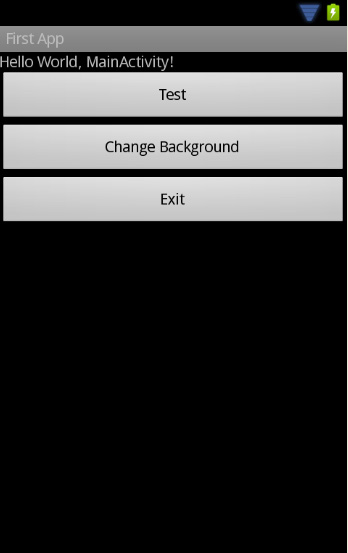
Save the project and go to graphical layout editor to see the changes. You will see a screen like this:
Add a color file to the values folder and define a color
For this, right click on the values folder
Select New?File
Enter filename as colors.xml and click Finish
Enter this xml code in colors.xml and Save.
<?xml version="1.0" encoding="utf-8"?>
<resources>

    <color name="newcolor">#121289</color>

</resources>
Design of our UI is complete now. Three buttons are placed in our layout, but it does nothing when we click on them unless we add click event handler for the button.
There are several ways by which we can handle a click event in Android. Now we will use the simplest method.
Open layout.xml and add this code as attribute of each of the <Button>tag.
android:onClick="newClickHandler"
By this we are telling the compiler to execute a method newClickHandler() when the button is clicked.
We should define the newClickHandler() method in MainActivity.java.
Open MainActivity.java and add the following code:
   public void newClickHandler(View view){
    	TextView text1=(TextView)findViewById(R.id.text1);
    	LinearLayout background=(LinearLayout)findViewById(R.id.background);
    	int s=view.getId();
    	switch(s){
    	case R.id.test:
    		text1.setText("Its Working");
    		break;
    	case R.id.changecolor:
    		background.setBackgroundResource(R.color.newcolor);
    		break;

    	case R.id.exit:
    		finish();
    		break;

}
We are defining a new method to handle the click event of all the buttons placed. It accepts an object of the type View as parameter. Then we create two references for the LinearLayout and TextView to use in our program. We use a method findViewById() for this. It will take an id as a parameter and return the View associated with the id. So text1 and background are the references for the TextView and LinearLayout respectively. The line int s=view.getId(); will get the id of the view that got clicked into a variable "s" of integer type. Then we are testing the variable with switch statement to find which button was clicked. It will compare the value of s with ids of all the buttons to find a match. If a match is found it will execute the corresponding code. If the test button is clicked it will alter the text property of the TextView to show "Its Working" on screen. If the "Change Background" button is clicked, background resource of LinearLayout is set to show a color that we defined in the colors.xml. If "Exit" button is clicked, finish() method is called, which exits the app.
Entering the above code will result in some error messages in Eclipse. This is because, to use LinearLayout, TextView, View etc. In our program, we need to import some packages at the beginning. Hovering on the error sign will tell you some packages are required to be imported. Click on it and you will get the option to import those packages. These are the packages that are required:
import android.view.View;
import android.widget.LinearLayout;
import android.widget.TextView;
Save and run the project.
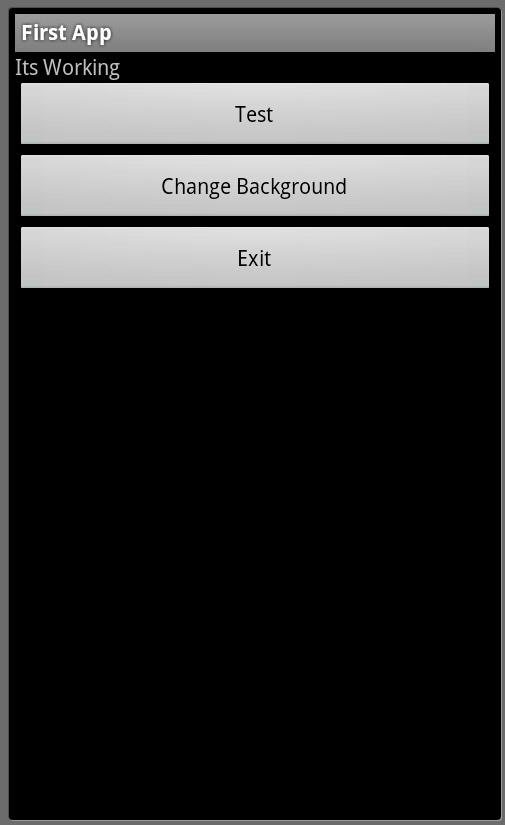
Congrats. We've successfully completed our first Android app. From this you've a basic idea on User Interface creation, resource creation and management, event handling etc. You can copy the final code given below.
Final Code:
/res/layout/main.xml
<?xml version="1.0" encoding="utf-8"?>
<LinearLayout xmlns:android="http://schemas.android.com/apk/res/android"
    android:layout_width="fill_parent"
    android:layout_height="fill_parent"
    android:orientation="vertical"
    android:id="@+id/background" >"

    <TextView
        android:layout_width="fill_parent"
        android:layout_height="wrap_content"
        android:text="@string/hello"
        android:id="@+id/text1" />

/res/values/strings.xml    <Button android:layout_width="fill_parent"
    	android:layout_height="wrap_content"
    	 android:id="@+id/test"
    	android:onClick="newClickHandler"
    	android:text="@string/button_test" />

	<Button android:layout_width="fill_parent"
    	android:layout_height="wrap_content"
    	 android:id="@+id/changecolor"
    	android:onClick="newClickHandler"
    	android:text="@string/button_color" />

	<Button android:layout_width="fill_parent"
    	android:layout_height="wrap_content"
    	 android:id="@+id/exit"
    	android:onClick="newClickHandler"
    	android:text="@string/button_exit" />"

</LinearLayout>
/res/values/strings.xml
<?xml version="1.0" encoding="utf-8"?>
<resources>

    <string name="hello">Hello World, MainActivity!</string>
    <string name="app_name">First App</string>
	<string name="button_test">Test</string>
	<string name="button_color">Change Background</string>
	<string name="button_exit">Exit</string>
</resources>
/res/values/colors.xml
<?xml version="1.0" encoding="utf-8"?>
<resources>

    <color name="newcolor">#121289</color>

</resources>
MainActivity.java
package com.firstapp;

import android.app.Activity;
import android.os.Bundle;
import android.view.View;
import android.widget.LinearLayout;
import android.widget.TextView;

public class MainActivity extends Activity {
    /** Called when the activity is first created. */
    @Override
    public void onCreate(Bundle savedInstanceState) {
        super.onCreate(savedInstanceState);
        setContentView(R.layout.main);
    }
    public void newClickHandler(View view){
    	TextView text1=(TextView)findViewById(R.id.text1);
    	LinearLayout background=(LinearLayout)findViewById(R.id.background);
    	int s=view.getId();
    	switch(s){
    	case R.id.test:
    		text1.setText("Its Working");
    		break;
    	case R.id.changecolor:
    		background.setBackgroundResource(R.color.newcolor);
    		break;

    	case R.id.exit:
    		finish();
    		break;

    	}

    }
}
Go to Android Development Tutorial Index
Its very useful for me. really thanks for u
Nice tut! Very well explained.
This is what you call brief and concise.
I totally understood it even though I'm really new at java.
Can't wait to try this out!
Can we create android application with eclipse by using this steps?
This is going to be very useful for me thank you very much for posting
Hi there. Really a great post for Fresher Android Developers. Thanks for sharing it.
Smartjazz recently posted..New Advanced iTunes Store
Thanks. It was very helpful.
Thanks sir ! It is very useful for me. Thanks Again
I is good is there free version of eclipse
09675520191
09634960652